

Hive
AI-powered inspection reports now available
Join Inspectors Community
See FeaturesTry It Free
Hive
  • Sample Reports
  • Features

    Product

    • Features

      Explore all features and capabilities

    • AI Home Inspection Software

      How AI reporting works, and how to judge it

    • Best Home Inspection Software

      A buying guide for comparing Hive, Spectora and HomeGauge

    • Report Software

      What to require from home inspection report software

    AI features

    • AI Comment Assist

      Write a full inspection comment from a few words

    • AI Comment Merge

      Combine related findings into one clean comment

    • Context Layer

      Market context on every defect in the report

    • AI Smart Add

      Coming soon

    • AI Repair Cost Estimator

      Coming soon

    Compare with

    • All comparisons
    • Hive Inspect vs Spectora
    • Hive Inspect vs HomeGauge
    • Hive Inspect vs Binsr
    • Hive Inspect vs ScribeWare
    • Hive Inspect vs ISN
    • Hive Inspect vs Inspector Toolbelt
    • Hive Inspect vs Palmtech
    • Hive Inspect vs Tap Inspect
    • Hive Inspect vs Horizon
  • Who We Serve
  • Pricing
  • Websites
  • Resources
    • Best Software Guide

      Compare Hive Inspect, Spectora and HomeGauge

    • Report Software Guide

      What to require from report-writing software

    • Free Checklists

      Printable field checklists for inspectors

    • Migrating From Horizon

      A step-by-step switching guide

    • FAQ

      Common questions answered

    • Privacy Pledge

      How we protect your data

Inspector Login
Get Started Free

Menu

  • Sample Reports
  • Features
  • Best Home Inspection Software
  • Home Inspection Report Software
    • AI Comment Assist
    • AI Comment Merge
    • Context Layer
    • AI Smart Add (coming soon)
    • AI Repair Cost Estimator (coming soon)
  • AI Home Inspection Software
    • All comparisons
    • Hive Inspect vs Spectora
    • Hive Inspect vs HomeGauge
    • Hive Inspect vs Binsr
    • Hive Inspect vs ScribeWare
    • Hive Inspect vs ISN
    • Hive Inspect vs Inspector Toolbelt
    • Hive Inspect vs Palmtech
    • Hive Inspect vs Tap Inspect
    • Hive Inspect vs Horizon
  • Who We Serve
  • Pricing
  • Websites
  • Free Checklists
  • Migrating From Horizon
  • FAQ
  • Docs & Help Center
  • Data Privacy Pledge
Get Started FreeInspector Log in
Features/AI Comment Assist
Available now

AI Comment Assist

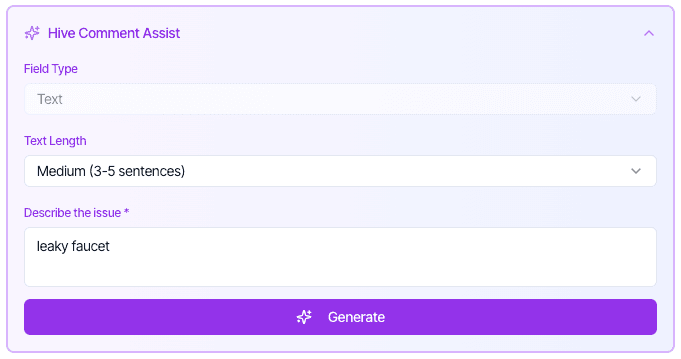
Type "leaky faucet" and get a finished comment back, written in your company's voice, with the category and service already set.

Start free
See all features

What is AI Comment Assist?

AI Comment Assist is the comment writing tool inside Hive, the AI home inspection software. You describe an issue in a few words, choose how long the description should be, and Hive writes the comment: a title, the description, the defect category and the service it belongs to. It writes in the style your company sets once in settings, and it works in the template editor, the web report editor and the mobile app while you are on site.

What it does
Writes a full inspection comment from a few words
Where it works
Template editor, web report editor, Hive mobile app
What it fills in
Comment name, description, defect category, service
Description length
Three options, medium runs three to five sentences
Set up
Your prompt under Settings, Organization, Hive AI
Requires
An internet connection
The full walkthrough: setting your wording, then generating comments in the template editor, the report editor and the mobile app.
Hive Comment Assist panel with a text length selector, a field describing the issue as leaky faucet, and a Generate button
Pick a length, describe the issue in a few words, generate. This is the whole interaction.
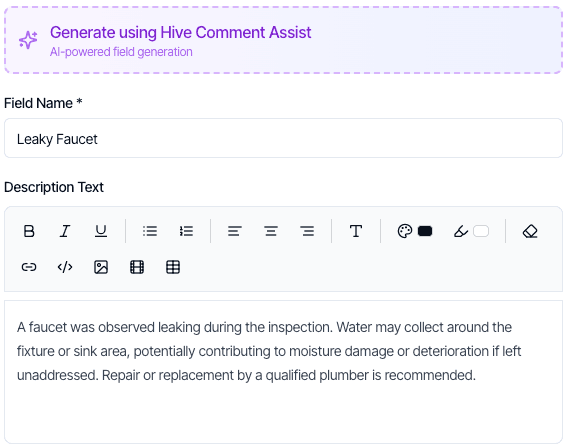
A generated Hive comment with the field name Leaky Faucet and a description of a leaking faucet observed during the inspection
What comes back from those two words: a field name and a written description, both editable before you create the comment.

What it fills in for you

  • The comment name, generated from the few words you typed
  • A description at the length you picked, in your company's wording
  • The defect category, so the finding lands in the right place in the report
  • The service the comment belongs to
  • The section or subsection it fits, worked out from where you are and what you typed

How AI Comment Assist works

You set your wording once in settings. After that it is a few words per comment.

01

Set your wording once

In Settings, open Organization, scroll to Hive AI and write the prompt that tells Hive how you want comments to read. One inspector uses "write the comment as if you are a U.S. trained home inspector, and include proper home inspector liability protection language". Yours should match the way you inspect and the language you stand behind, because every comment Hive writes follows it.

02

Add the comment where you need it

Adding a field in a template, a comment in the web report editor or a defect on your phone all open the same panel. Choose Generate using Hive Comment Assist instead of typing it out.

03

Pick a length and describe the issue

Three description lengths are available, with medium running three to five sentences. Then describe the issue in as little as two words. Vague input works: type "not working" inside the ductwork subsection and Hive uses where you are to fill in the rest.

04

Read it, change what you want, create it

The generated title, description, category and service all appear before anything is saved. Edit any part of it, then create the comment. In the report editor the defect is switched on as you create it; in a template it stays off until you enable it.

Where you can use it

Template editor

Build out a section without writing every comment by hand. Generate the comment, adjust it, and it becomes part of the template you reuse on every job.

Web report editor

Add a comment to a live report at your desk. Hive sets the category and service and enables the defect as it creates it.

Mobile app

Add a defect from the property, in the section you are standing in. This is the one place that needs a signal, since the writing happens online.

Worth knowing before you turn it on

Your prompt controls the voice

The walkthrough is blunt about this: your comments need to reflect your own way of inspecting houses, so update the prompt to your preferences rather than leaving the example in place.

Nothing is saved without you

Generating fills in the form. Nothing is added to your template or report until you set it up the way you want and press create.

It needs an internet connection

You need an internet connection to use Comment Assist.

It is an organization setting

The prompt lives under Organization in your settings rather than on an individual account, so it covers the comments generated under your company.

AI Comment Assist questions, answered

Yes, and you should. In Settings, under Organization, the Hive AI section holds the prompt that decides what kind of language your comment descriptions use, including any liability protection wording. Your comments need to reflect your own way of inspecting, so update it to match how you work.
You choose from three lengths each time. The medium option is three to five sentences.
In three places: the template editor, the web report editor and the Hive mobile app.
No. You need an internet connection to use Comment Assist.
It still works. In the walkthrough, typing "not working" inside a ductwork subsection produced a full HVAC comment, because Hive works out which section or subsection you are in and fills in the rest.
Yes. Generate it in the template editor, adjust anything you want and create it, and it is part of that template like any comment you wrote by hand.

More background on how the AI works is on the AI home inspection software page, or email us at [email protected].

Other AI features

AI Comment MergeCombine related findings into one clean commentContext LayerMarket context on every defect in the reportAI Smart AddComing soonAI Repair Cost EstimatorComing soon
Get Started

Try Comment Assist on your next report

Start free and run a real inspection through Hive before you decide anything.

Get started
  • No credit card required

  • 5 free reports

Hive InspectHive Inspect

Hive Inspect is the AI Co-Inspector for Home Inspectors: AI home inspection software that writes reports with you. Many inspectors call it Hive for short.

  • Hive Inspect on the App Store
  • Hive Inspect on Google Play
  • Instagram
  • Facebook
  • Facebook Community
  • YouTube

Product

  • Features
  • AI Home Inspection Software
  • Home Inspection Report Software
  • Pricing
  • Sample Reports
  • Websites
  • Who We Serve
  • Download the App
  • Help Center & Docs
  • Video Tutorials

Compare

  • Best Home Inspection Software
  • Compare Hive Inspect
  • Hive Inspect vs Spectora
  • Hive Inspect vs HomeGauge
  • Hive Inspect vs Binsr
  • Hive Inspect vs ScribeWare
  • Hive Inspect vs ISN
  • Hive Inspect vs Inspector Toolbelt
  • Hive Inspect vs Palmtech
  • Hive Inspect vs Tap Inspect
  • Hive Inspect vs Horizon
  • Switch to Hive Inspect
  • Free Checklists
  • Inspection Glossary
  • Inspector Reviews
  • Blog
  • What's New in Hive
  • Switching from Horizon

Company

  • About Hive Inspect
  • Partner Program
  • Documentation
  • Contact Support

Trust & Legal

  • FAQ
  • Security
  • Data Privacy Pledge
  • Privacy Policy
  • Terms of Use
  • Subscription Agreement
  • SMS Compliance

Stay in the loop

Get inspection tips, product updates, and industry insights delivered to your inbox.

Join our newsletter. No spam, unsubscribe anytime.

© 2026 Synapse Mobility, Inc. All rights reserved. Built for Home Inspectors.

Book a call