


Put your own repair prices at the top of the report
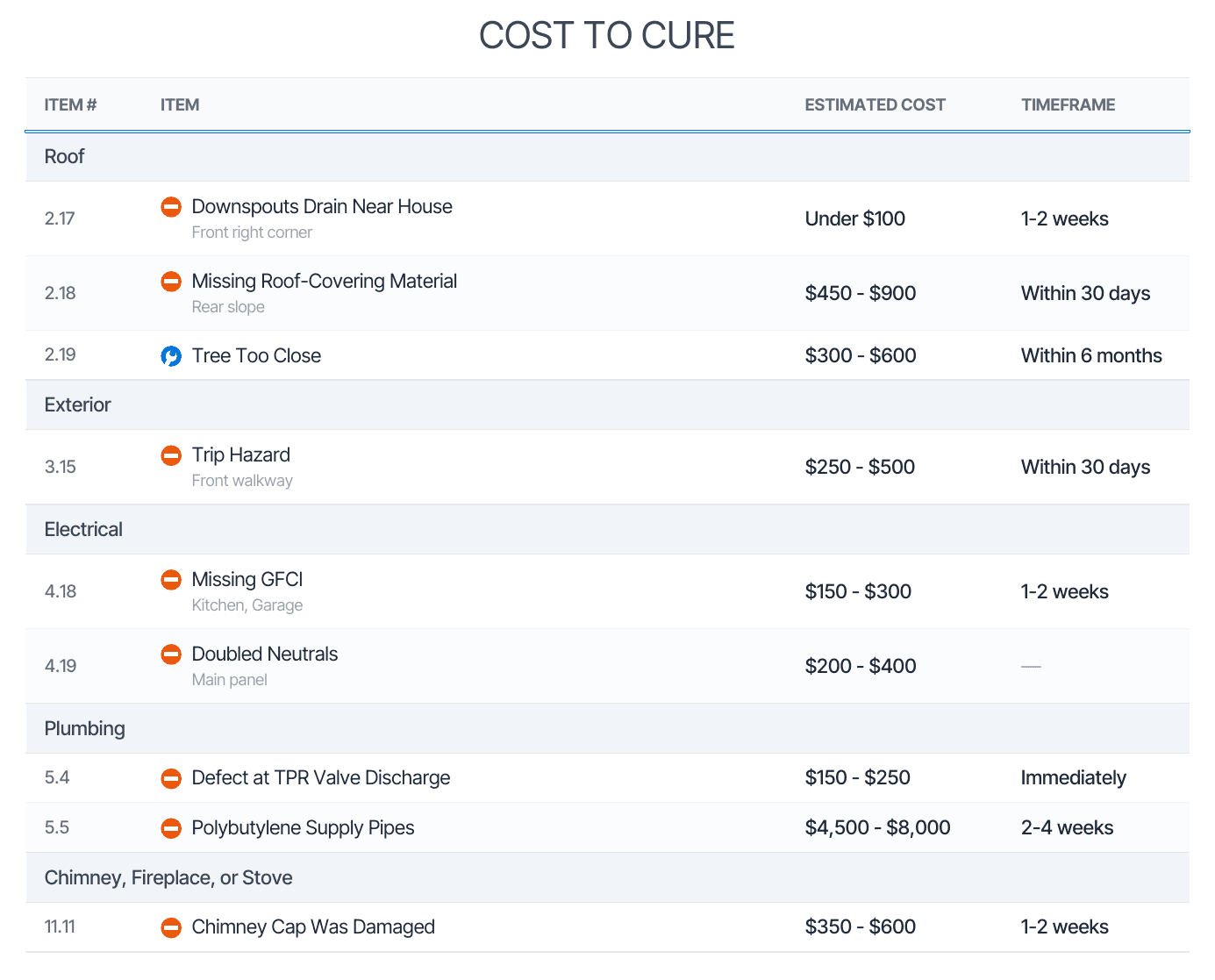
Type an estimated cost and timeframe on a defect. The Cost to Cure table gathers every priced defect, grouped by section, right after the report introduction, in the digital report and the PDF.
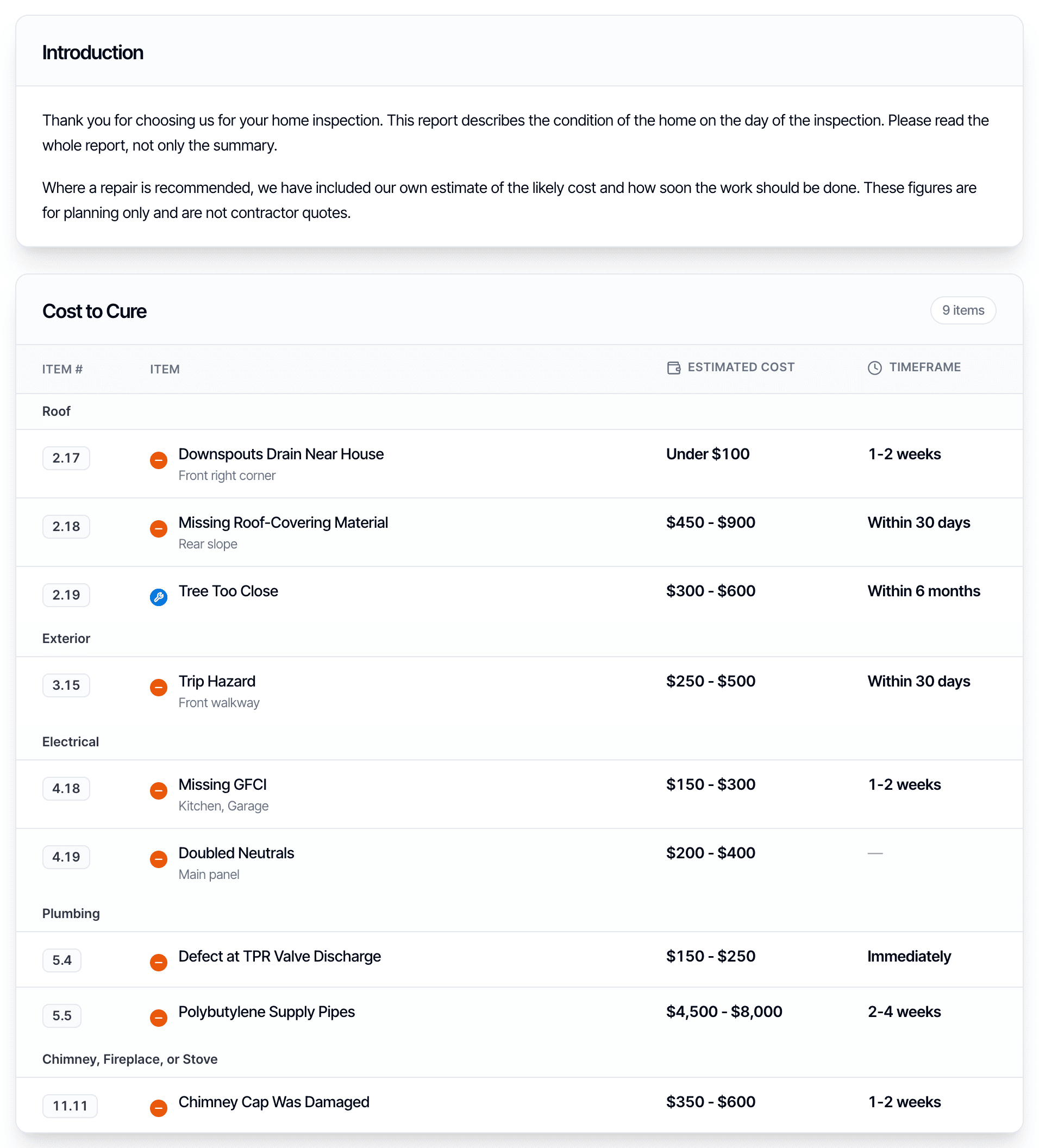
- 4 columns
- Item #, Item, Estimated Cost and Timeframe
- Web and PDF
- the same table in the digital report and the PDF
- Any template
- commercial clients often ask for it
Your prices, where clients look first
Your numbers, as you write them
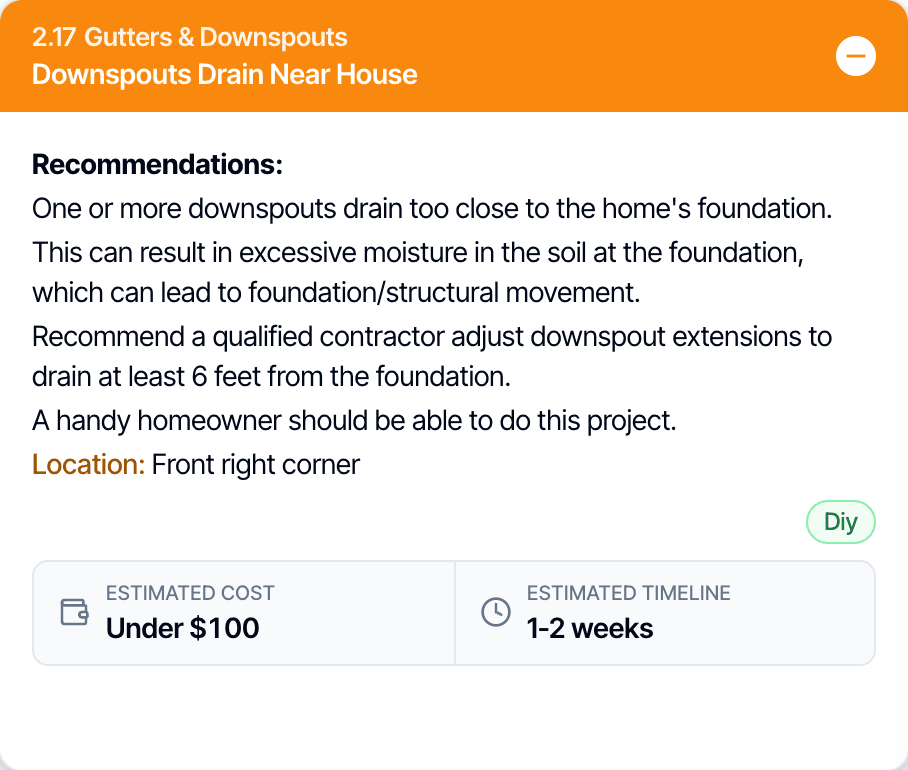
Both fields are plain text. Type a range, a single figure or a note such as "TBD after roofer evaluation", and Hive shows it exactly as typed.
One table, one click to the defect
Rows are grouped by report section, in report order. Each row links to its defect, with the photos and full description.
Ready for commercial clients
Commercial clients often ask for a cost to cure table. Turn it on for your commercial template, or for any template you use.
How Cost to Cure works
Type your prices on the defects, then switch on the table. Setup steps in the Hive docs
Step 1
Add a cost and timeframe
On any defect comment, in the template, the Web Editor or the mobile app. Prices saved in the template fill in on every new report.
Step 2
Turn on the table
In Template Tools for new reports, or Report Tools for one report. With the table off, each cost still shows on its own defect.
Step 3
Publish as usual
The table sits after the introduction in the digital report and the PDF. On a phone, each defect becomes its own card.
Cost to Cure or the Repair Estimator?
Both give your client repair costs. The difference is who sets the price.
| Cost to Cure | Hive Repair Estimator | |
|---|---|---|
| Who sets the prices | You. You type a cost on each defect. | Hive AI, priced for the property’s local market. |
| Where the client sees it | Inside your report, digital and PDF. | A separate Hive-branded PDF. |
| When the client gets it | With the report. | By email, 15 minutes after you publish. |
| Which defects are included | Only the defects you gave a cost. | Every defect in the report. |
| Totals | No total. Each defect shows its own cost. | A subtotal per trade and a total for the home. |
You can use both on the same report. They don’t affect each other: the Repair Estimator does not read the costs you typed, and your costs are never changed by it.
Cost to Cure questions
What is Cost to Cure?
Does the table add up a total?
Do I have to price every defect?
Can I type costs in the mobile app?
Can clients tell these are my estimates and not quotes?
Is there anything to turn on for my company first?
Anything else: email support@hiveinspect.com.
AI tools in Hive
- AI Comment AssistWrite a full inspection comment from a few words
- AI Comment MergeCombine related findings into one clean comment
- Context LayerMarket context on every defect in the report
- Smart AddDescribe a finding, get the matching comment
- Hive Repair EstimatorA priced repair estimate for your client, by contractor trade
Add your repair prices to your next report
Start with a free trial: 5 free reports, no credit card. We move your templates, agreements, services, contacts and settings, and set up your account so it’s ready to run your business, free.